Appearance
Staging Area
You can select this tool via .
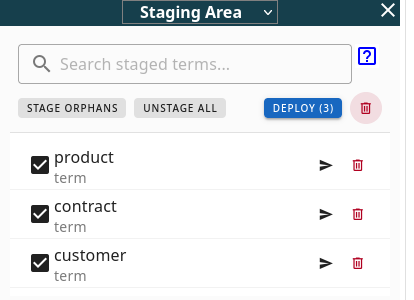
This tool allows you to organize and prepare terms before deploying them permanently to your main canvas. It is especially useful when importing large datasets or brainstorming sessions where you want to selectively add concepts.
Key Features
(more info soon...)The Staging List
The sidebar shows all currently staged terms. These are terms that exist in your project data but are not yet "active" on the canvas layout.
- Search: Use the search bar to filter the list by term name.
- Select: Use checkboxes to select multiple terms for bulk operations.
Deploying Terms
There are two ways to move terms from staging to the canvas:
- Drag and Drop: Simply drag a term from the list and drop it anywhere on the canvas. It will be placed exactly where you drop it.
- Deploy Selected: Select multiple terms and click the Deploy button. These terms will be placed in the center of your view.
Managing Staging
- Stage Orphans: This feature scans your canvas for "orphan" nodes (terms with no connections) and moves them back to the staging area. This is great for cleaning up your workspace.
- Unstage All: Moves all currently staged terms onto the canvas at once.
- Delete: Permanently removes selected terms from the project.
TIP
Staged terms are saved with your document but are hidden from the main view until deployed.