Appearance
Clicking on a Relation in the graph will open the Relation Sidebar which provides all details of the Relation.
Main
Basic information
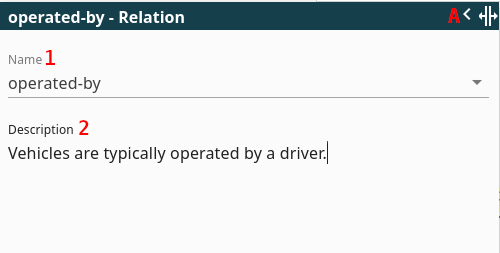
- Name: View and change the name of the Relation. You can enter a name or select it from the dropdown.
- Description: View and change the description of the Relation. It is a simple text field.
The Relation Sidebar supports two modes for viewing and editing Relation information:
- Edit Mode: Allows you to modify the Relation's description and additional information using editable text fields
- View Mode: Displays the Relation's description and additional information in a read-only format with clickable Term links
Switching Modes
- Click the pencil icon () to switch to Edit Mode
- Click the eye icon () to switch to View Mode
The mode setting is global and shared with the Term Sidebar - once you set it to Edit or View mode, it remains active as you navigate between different Relations and Terms. This allows you to quickly review your model without repeatedly switching modes.
View Mode Benefits
When in View Mode:
- Clickable Term Links: Any Term names mentioned in the description or additional information become clickable links
- Quick Navigation: Click on a Term name to instantly navigate to that Term in the graph
- Term Previews: Hover over Term links to see a preview popup with the Term's description
- Better Readability: Content is displayed with proper formatting and word wrapping
Buttons
- A Close: Click the X button to close the sidebar and deselect the Relation
- B Collapse/Resize: Click the chevron button to collapse the sidebar (Relation stays selected). You can also resize the sidebar by dragging its edge.
- More Actions Menu (⋮): Provides quick access to:
- Copy to clipboard: Copies the Relation's description to your clipboard
Tabs
Add Info
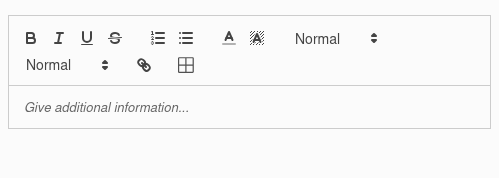
Here you can add additional information for your Relation. You can elaborate on the description, add examples, explanations, etc.
- Edit Mode: Provides a rich text editor with formatting options (bold, italic, lists, headings, etc.)
- View Mode: Displays the formatted content with clickable Term links for easy navigation between related Terms
Details
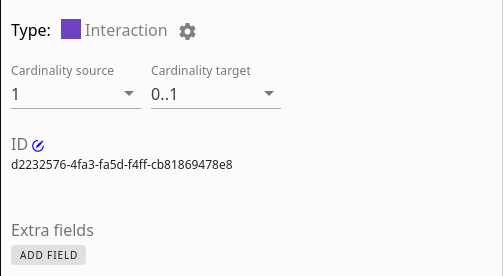
In this tab, you can modify the Relation's category, alter its ID, and add or edit any custom Fields you have defined
- Type: The type of the Relation based on the Relation name. Click on the settings icon to change the mapping. See Relation Type
- Cardinality Source: (Only visible when enabled 'Cardinalities of Relations' in Document Settings). The cardinality from target to source (reverse Relation). A dropdown field where you can select the Cardinality
- Cardinality Target: (Only visible when enabled 'Cardinalities of Relations' in Document Settings). The cardinality from source to target (normal Relation). A dropdown field where you can select the Cardinality
- Change ID: Clicking the icon allows you to modify the Relation's identifier
- Extra Fields: This section enables you to manage custom Fields for both Terms and Relations. You can add or remove Fields and set their corresponding values. Fields are useful to store extra information, like categories or hyperlinks. They can also be used for filtering the graph.
- Weight: Only visible if enabled in the Document Settings. Type or select a number representing the Relation weight.
Terms

Displays the source and target Term in this Relation
Cardinalities
Enable cardinalities via the dropdown:
Imagine you have two Terms, like "Person" and "Car," and a Relation between them, like "owns." Cardinality tells you how many of each Term can be involved in that "owns" Relation. A cardinality can be set on the source (read this as the reverse Relation) and on the target (the normal direction from left to right).
For example, Person -( 1 )--owns--( 0.._ )-> Car means that a Person can own zero, one, or more Cars (0.._), and a Car can be owned by one Person (1).
Cardinality types
- 1: Exactly one
- 1..*: One or more/Minimal 1
- 0..1: Zero or one/Optionally one
- 0..*: Zero or more/Optionally one or more