Appearance
Model Comparison
Compare your current model against another model to see what's the same and what's different. This feature helps you review AI-generated modifications, compare different model versions, and maintain an audit trail of changes.
Opening the Compare Dialog
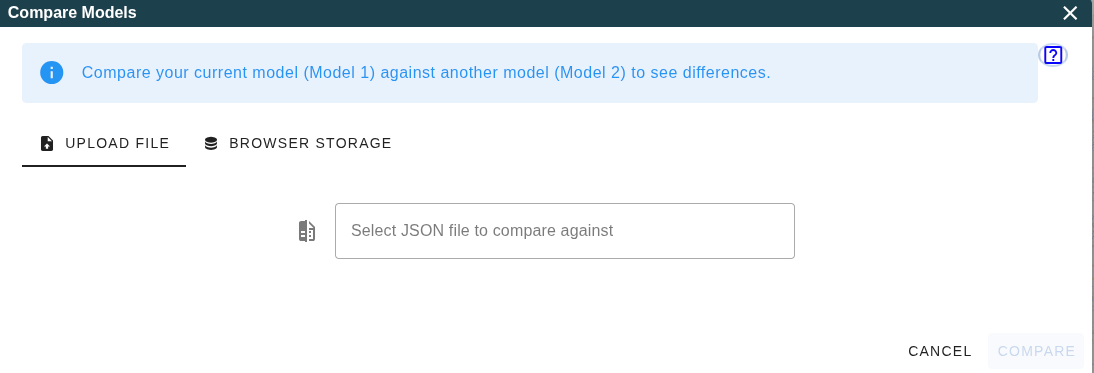
Selecting a Model to Compare
You have two options for selecting the model to compare against:
Upload File
Select a Termboard JSON file from your computer.
Browser Storage
Select from models you've previously saved to the browser. This is convenient for comparing your current work against earlier saves without needing to export/download files.
Understanding Model 1 vs Model 2
Termboard uses neutral terminology to compare any two models:
| Term | Meaning |
|---|---|
| Model 1 | Your current canvas (the model you're working on) |
| Model 2 | The model you're comparing against (file or browser storage) |
| Same | Exists in both models with identical values |
| Different | Exists in both models but with different field values |
| Model 1 Only | Exists only in your current model |
| Model 2 Only | Exists only in the compared model |
This terminology works for any comparison scenario - whether comparing old vs. new versions, drafts vs. production, or two completely different models.
Understanding the Comparison Results
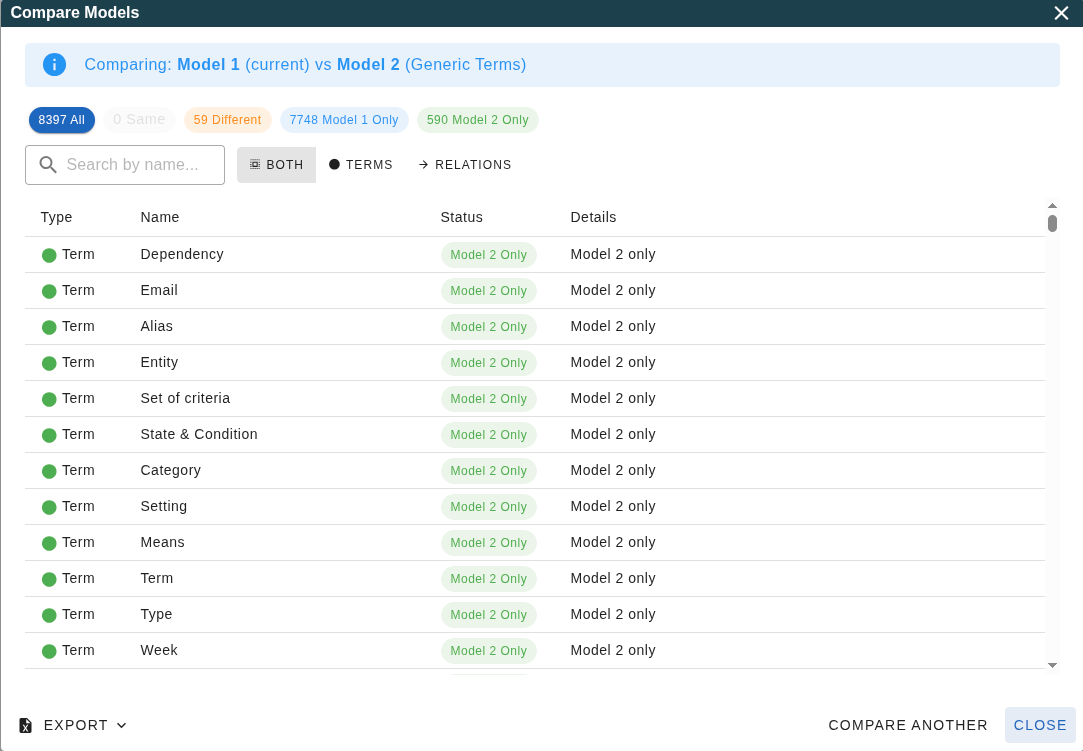
Filter Chips
Colored chips at the top show counts for each category. Click a chip to filter the table to that category:
- All: Show all items
- Same: Show items that are identical in both models
- Different: Show items that exist in both but have changed
- Model 1 Only: Show items only in your current model
- Model 2 Only: Show items only in the compared model
Controls Row
Controls Row
The controls row provides filtering options:
- Search: Type to filter by Term/Relation name (also searches source/target names for Relations)
- Settings (Gear Icon): Access advanced filters like content type (Terms/Relations/Both) and field updates.
- Filter Chips: Click the colored chips to filter by status (Different, Model 2 Only, etc.)
Changes Table
Lists all items with:
- Type: Term or Relation
- Name: The name of the element
- Status: Same, Different, Model 1 Only, or Model 2 Only
- Details: For different items, shows which fields changed
Click column headers to sort the table. The table uses virtual scrolling to efficiently handle large comparisons (8000+ items).
Applying Changes
You can selectively merge changes from Model 2 into your current model.
1. Select Items
Check the boxes next to the items you want to apply. You can select individual items or use the "Select All" checkbox in the header.
Note on Relations: If you select a relation for import, Termboard will automatically include its source and target terms if they don't already exist in your model.
2. Choose Fields to Update
For items marked as Different, you can choose exactly which fields to update.
- Click the Different filter chip to show only modified items.
- Click the Settings (Gear) icon and look for "Update Fields (Differences)".
- Uncheck any fields you don't want to change.
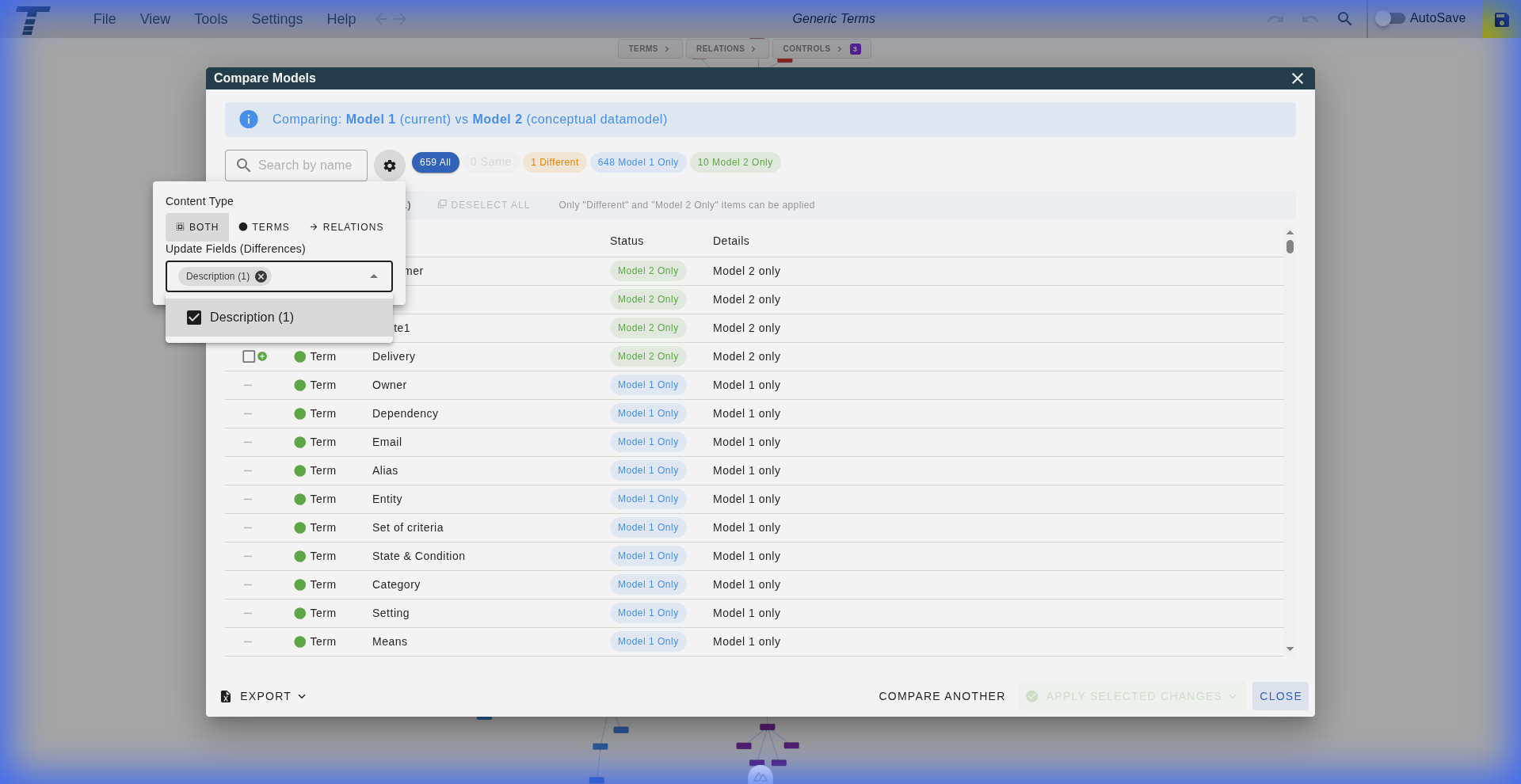
Per-Item Overrides: You can also override these settings for individual items by expanding their row in the table and adjusting the checkboxes for that specific item.
3. Apply Actions
Click the Apply Selected Changes button and choose an action:
- Update & Add: Updates existing items (Different) and adds new ones (Model 2 Only).
- Update Only: Ignores new items, only updates existing ones.
- Add Only: Ignores updates, only adds new items.
All changes are applied in a single Undo step, so you can easily revert if needed.
Inspecting Differences
Click on any Different row to open the Diff Viewer, which shows:
- Model 1 (Current): Values from your current canvas
- Model 2: Values from the compared file/document (shows actual name)
- Side-by-side view: Values displayed in two columns
- Inline view: Changes displayed in a single column
Toggle between views using the buttons at the top of the dialog.
Exporting Changes
Click the Export button to choose:
- Export All: Download all comparison results to Excel
- Export Visible Only: Download only the currently filtered/searched items
The Excel file contains:
- A Changes sheet with all detected differences
- A Summary sheet with comparison statistics
Matching Strategy
Termboard uses a smart matching strategy when comparing models:
- ID Match: Elements are first matched by their unique ID
- Name Match: If IDs don't match, elements are matched by name (case-insensitive)
This ensures accurate comparison even when:
- IDs have been regenerated (e.g., after import)
- Elements have been renamed (detected as different, not as moved)
Use Cases
Reviewing AI-Generated Changes
- Save your model before making AI-assisted changes
- Make your changes using AI
- Use Compare with... to review exactly what the AI modified
Comparing Model Versions
- Save your model at key milestones
- Compare current state against any saved version
- Export the comparison for documentation
Comparing Different Models
- Open one model as your current canvas
- Compare against another model file
- Use "Same" filter to see what's shared
- Use search and field filters to focus on specific changes