Appearance
Compact Format (Import/Export)
The Compact Format feature allows you to export your model structure (Terms and Relations) as a clean, text-based format. You can also Import this format back into Termboard, making it ideal for:
- Saving text backups
- Versioning in Git
- Sharing via snippets
- Interacting with LLMs (ChatGPT, Claude, etc.) as context or output. This helps the AI understand your specific domain, terminology, and relationships, enabling it to answer questions or generate content based on your model.
How to Use
- Go to File > Export > Compact Format.
- The Copy Model Context dialog will appear.
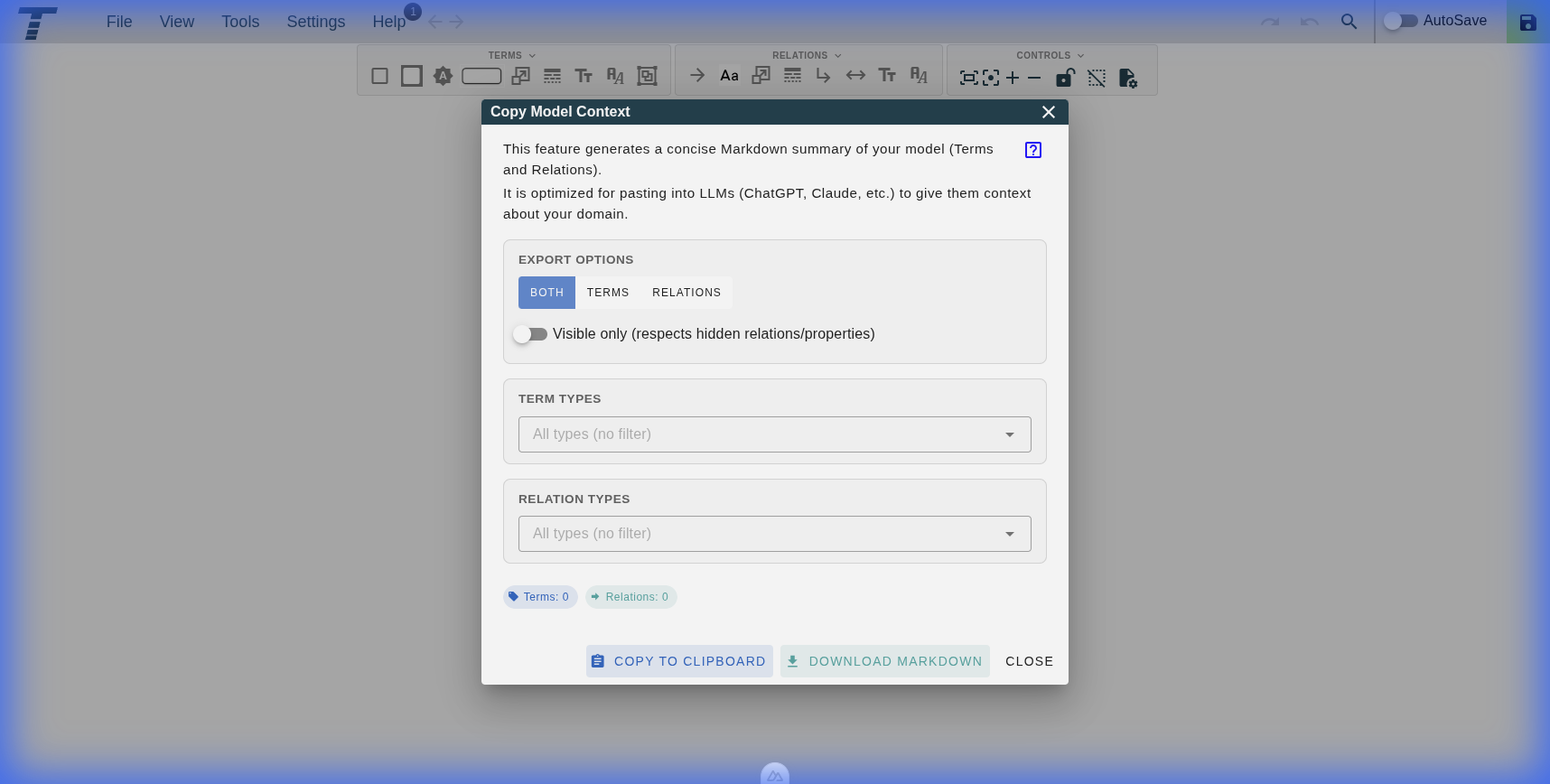
Content to Export
You can independently toggle which sections to include in the generated Markdown:
- Terms: Include the definitions of all Terms (name, description, types, etc.).
- Relations: Include the connections between terms.
- Evaluations (BA): Include Business Analysis scores, stakeholder evaluations, and scenarios. (This option only appears when a Business Analysis profile is active).
- AI Guide: Include a generated "Model Guidance" section with type and field documentation, optimized for LLM context.
General Options
- Visible only: When enabled, respects hidden Relations and properties (only exports elements currently visible on the graph).
- Include Extra Fields (xFields): When enabled, exports any custom properties defined for your Terms and Relations as additional columns.
Type Filtering
You can filter the export by specific types:
- Term Types: Filter by term types (term, concept, property). Leave empty to include all types.
- Relation Types: Filter by relation types (Generalization, Composition, etc.). Leave empty to include all types.
The Terms and Relations counts at the bottom update in real-time to show how many elements match your current filters.
Actions
- Copy to Clipboard: Copies the Markdown summary directly to your clipboard for pasting into AI chat windows.
- Download Markdown: Saves the summary as a
.mdfile to your computer.
Using the Context with AI
Once you have the summary, you can paste it into an LLM prompt. For example:
"I am working on a software project. Here is the domain model context:
[PASTE YOUR MODEL CONTEXT HERE]
Based on this model, can you suggest some user stories for the 'Account' entity?"
The AI will now have specific knowledge of your Terms (like 'Account', 'User') and their Relations, leading to much more relevant and accurate responses.
AI Interaction Tips
- Provide the Full Context: Copy the entire Markdown output (File > Export > Compact Format) into the chat.
- Ask for Structured Output: If you want the AI to generate new terms or relations, ask it to "Output in the Termboard Compact Format (Markdown)".
- Keep it Clean: Avoid adding extra descriptive text inside the Terms or Relations sections when prompting the AI to generate data, as the Termboard parser works best with clean table structures.
The generated summary uses a custom pipe-delimited format (not standard Markdown tables), which means:
- Rule 1: Section Markers: Sections are designated by
## Terms,## Relations, and## Evaluations. - Rule 2: Positional Header: The first line starting with
#within a section defines the columns (e.g.,# name | description). - Rule 3: Comments & Metadata: Any subsequent lines starting with
#are treated as comments or AI guidance and are ignored by the parser. - Rule 4: Data Rows: All other non-empty lines are treated as data, using
|as the column separator.
Technical Specification
Termboard uses a deterministic parser. The header row must start with # and be the very first comment line immediately following its section marker. This allows you to include rich AI guidance and metadata as subsequent comments without confusing the importer.
Terms Columns
| Property | Aliases | Description |
|---|---|---|
name | - | Required. The display name of the term. |
description | - | Brief summary of the term. |
parent | - | The name or ID of the parent group. |
type | - | term, concept, property, or group. |
additionalInformation | additional_info | Technical notes or extra details. Supports Quill.js HTML format. |
synonyms | - | Comma-separated list of aliases. |
url | - | Reference link. |
weight | - | Numeric importance (default: 1). |
x | xpos | Horizontal coordinate. |
y | ypos | Vertical coordinate. |
Relations Columns
| Property | Aliases | Description |
|---|---|---|
source | sourceId, sourceTerm | Required. Source term name or ID. |
target | targetId, targetTerm | Required. Target term name or ID. |
relationName | relation, name | Label of the relation. |
description | - | Brief description of the connection. |
additionalInformation | additional_info | Extra notes. Supports Quill.js HTML format. |
cardinality | - | Target cardinality (e.g., 1, *). |
cardinalitySource | - | Source cardinality. |
weight | - | Numeric importance. |
Evaluations Columns (BA Profile)
| Property | Description |
|---|---|
requirement | Required. The name of the Requirement being evaluated. |
score | The numeric score (0-5), Skip, or - for empty. |
explanation | Optional comments provided by the scorer. |
scenario | The name of the Analysis Scenario (e.g., "Vendor A"). |
scorerID | The ID or email of the person who provided the score. |
NOTE
Extra Fields: You can append custom fields using the xfield: prefix in the header, e.g., ... | xfield:Status. Values for dropdown/multi-value xFields will be automatically matched to their definitions.
Formatting Notes
- Separators: While
|is the standard separator, the parser is flexible and will attempt to detect common delimiters. - Cleanup: Termboard automatically escapes pipes and newlines when exporting to this format to maintain table integrity.
- Hierarchy: If a
parentname is provided that doesn't exist yet, Termboard will automatically create it as agrouptype node.
Example Output
markdown
# Model: My Domain Model

## Terms
# name | description | parent | type | xfield:status
Customer | A person who purchases goods | Person | concept | Active
Order | A request for products | | concept | Pending

## Relations
# source | relationName | target | description | cardinality | cardinalitySource | xfield:priority
Customer | places | Order | Customer places an order | * | 1 | High

## Evaluations
# requirement | score | explanation | scenario | scorerID
Order | 4 | Meets most needs | Vendor A | [email protected]
Importing Compact Format
You can import this exact format back into Termboard:
- Go to File > Import > Compact Format.
- Paste the text into the box OR drop your
.mdor.txtfile. - Choose your Duplicate Handling (Update/Skip/Add) and Graph Mode (Add to Graph/Replace Graph).
- Click Import.
The importer automatically detects the ## Terms and ## Relations sections and rebuilds your graph, including all details and Extra Fields.
Re-importing Your Model
This enables:
- Model Transfer: Export from one model and import into another
- AI-Generated Content: Have an AI generate content in this format, then import it directly
- Backup & Restore: Keep text-based backups of your model structure
Simply copy the Terms or Relations section and paste it into the corresponding bulk add dialog.