Appearance
Compare Models
You can select this tool via , , or directly from the right sidebar tool selector.
The Compare Models tool evaluates differences between your active canvas and another model version directly alongside the graph canvas.
Overview
The tool supports reviewing changes, performing granular reconciliation, and exporting release notes while keeping your canvas in view.
Workflow & Features
1. Model Source Selection
Choose the baseline or target model you wish to compare against:
- Browser Tab: Search and select from models saved in your browser's local storage, complete with modification timestamps.
- File Tab: Drag and drop or browse for a local Termboard
.jsonmodel file.
Once loaded, the top info bar displays the CANVAS: (current canvas) and COMPARED: (compared model) names. Click the swap icon () at any time to switch or reset the compared model.
2. Auto-Detection Banners & Probable Renames
- Mode Auto-Detection Banner: When you load a file that represents an incremental addition, modular patch, or standard benchmark, Termboard automatically detects the intent and prompts you with a 1-click action:
- Delta Patch suggestion: "Partial patch detected (matches canvas, omits N terms). Treat as Delta Patch?"
[Switch to Delta] - Alignment suggestion: "External reference detected (divergent vocabulary). Switch to Benchmark Align?"
[Switch to Align]
- Delta Patch suggestion: "Partial patch detected (matches canvas, omits N terms). Treat as Delta Patch?"
- Probable Renames Banner: If elements have undergone name changes while retaining similar attributes (name similarity ≥75%), a banner displays the old name, arrow, new name, and calculated similarity percentage (e.g.,
85%):- Accept: Links them as a renamed concept rather than separate deletion and addition.
- Dismiss (X): Keeps them as separate concepts.
- Accept All / Dismiss All: One-click batch actions when multiple candidates exist.
3. Search & Filter Menu
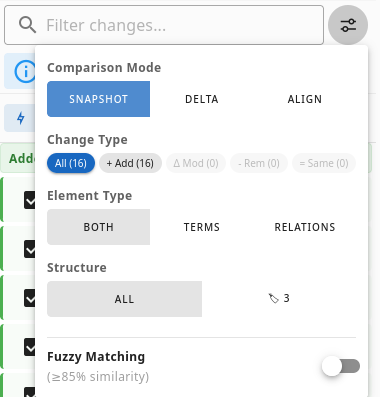
Comparison Mode Selector
Click Snapshot, Delta, or Align at the top of the menu to switch how changes are interpreted and merged. For complete semantics, scoped deletion rules, and Venn metrics, see the comprehensive Multi-Paradigm Comparison Modes Guide.
The Filter Options menu () next to the search bar configures change filters, matching rules, and comparison paradigms:
- Search Bar: Type-to-filter changes by term or relation name in real time.
- Filter Menu Button (): Displays a primary notification dot whenever any filter is active. Click to open the filter panel:
- Comparison Mode:
- Snapshot (Default): Full closed-world sync (V1 → V2). Canvas items missing in the compared model are marked for deletion. (See Snapshot Mode).
- Delta: Open-world modular additions. Omits untouched canvas items from deletion; relations delete only if both endpoints are in the patch. (See Delta Patch Mode).
- Align: External standard benchmark. Concept-name and synonym matching; deletions disabled; real-time Venn overlap metrics. (See Vocabulary Alignment Mode).
- Change Type Chips: Filter by status with live item counts:
- In Snapshot & Delta: All, Δ Mod, + Add, - Rem, = Same, plus Untouched when out-of-scope items exist.
- In Alignment: All, + Gaps (unadopted), Δ Divergent, - Proprietary (kept intact), = Shared, plus Proprietary (canvas only).
- Element Type: Toggle visibility between Both, Terms, or Relations.
- Structure: Filter by structural impact: All, 📦 Containers (parent-child grouping changes), or 🏷 Hierarchy (taxonomy relationships).
- Fuzzy Matching: Toggle name similarity matching (≥85% threshold; always active in Alignment mode).
- Reset Filters: Appears when filters are active to quickly restore default view.
- Comparison Mode:
- Venn Summary Card (Alignment Mode): Displays real-time vocabulary overlap percentage, shared concept counts, standard gaps, divergent definitions, and proprietary terms.
4. Actions & Reconciliation
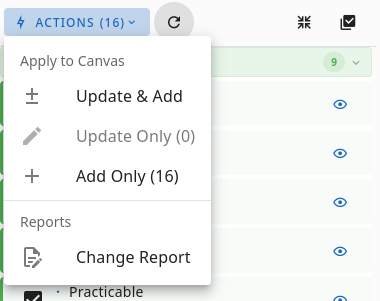
The toolbar controls reconciliation, adoption, exports, and selection:
- Actions Menu (
Actions (count)orAdopt (count)):- In Snapshot & Delta Modes (Apply to Canvas):
- Update & Add: Updates modified items with selected fields and adds new items.
- Update Only: Applies updates to existing matched items, ignoring new elements.
- Add Only: Adds newly introduced items from the compared model.
- Delete Only / Apply All (Inc. Deletes): Handled safely with cascade warnings whenever deletions are staged. In Delta mode, canvas items outside the patch scope are protected by Delete Guard.
- In Alignment Mode (Adopt Standards):
- Adopt All (Gaps & Updates): Merges all unadopted concepts and applies divergent definitions.
- Adopt Updated Definitions (${count}): Updates local definitions with standard descriptions and properties.
- Adopt Missing Concepts (${count}): Adds unadopted benchmark concepts to your canvas.
- Reports:
- Change Report (Snapshot/Delta) / Coverage Report (Alignment): Opens the Report dialog to inspect differences, annotate rationale, and export to Markdown, HTML, Print/PDF, or Excel (.xlsx).
- In Snapshot & Delta Modes (Apply to Canvas):
- Canvas Refresh (): Highlights when canvas changes occur and prompts you to recalculate diffs.
- Expand / Collapse All: Toggles expand/collapse state across all change sections.
- Select All / Deselect All: One-click toggle for all currently visible actionable items.
5. Interactive Changes List
Changes are grouped into distinct, collapsible sections (Added Terms, Modified Terms, Removed Terms, Added Relations, Modified Relations, Removed Relations, and Unchanged Items):
- Checkboxes to stage individual items for reconciliation or adoption.
- Concept icons: Circle for terms () and arrow for relations ().
- Indicator badges for structure (
📦,🏷) and fuzzy similarity (~85%). - Preserved Canvas Concepts (Delta Mode): Canvas concepts outside the patch scope are grouped in a collapsed non-actionable section (
Out of Scope (Untouched)) so the diff remains focused strictly on the patch. - Focus or Preview on Click:
- Clicking any existing element (Modified, Removed, Same) immediately centers, zooms, and highlights that element on the Cytoscape canvas.
- Clicking an Added element (which does not yet exist on your canvas) automatically opens the preview dialog so you can inspect its incoming properties.
- Universal Preview Eye Icon (): Available on all items across all change types. Opens the modal Diff Viewer dialog for side-by-side/inline diffs (Modified) or rich property inspection (Added, Removed, Unchanged, and Relations).
Comprehensive Guide
For full details on Search & Filters Options, Comparison Modes, field-level diff inspection, automatic relation dependency resolution, and release notes/coverage reports, see the Model Comparison & Release Notes Reference.