Appearance
Mapping Studio
Mapping Studio allows you to map physical data assets (such as databases, tables, and columns from an external data catalog) directly to your standardized business glossary terms in Termboard.
Open it via Tools > Mapping Studio
Overview
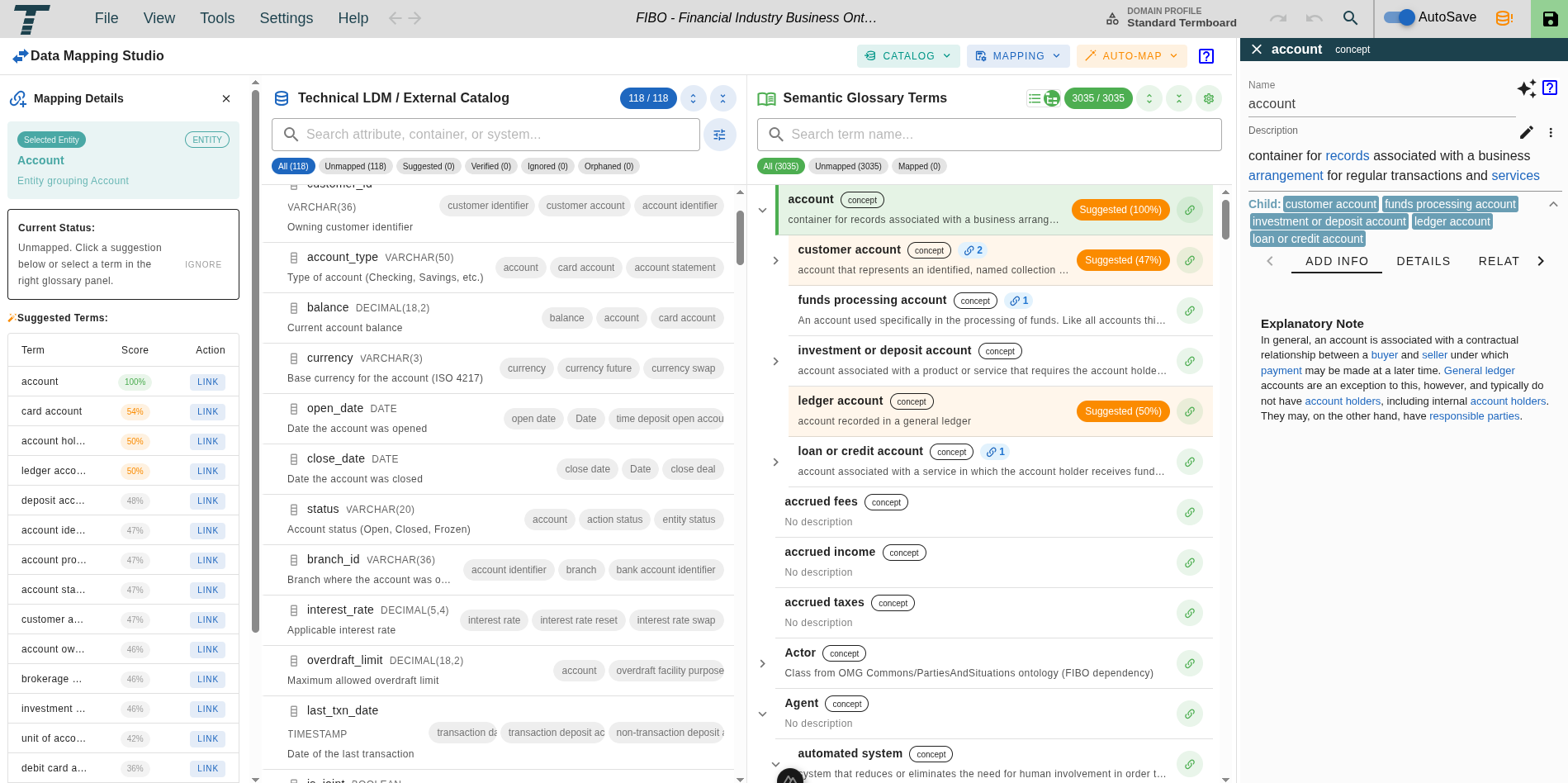
Mapping Studio provides a multi-panel workspace for bridging technical catalog metadata and business terminology:
- Mapping Details Sidebar (Far Left): Displays current mapping status (
Unmapped,Verified,Ignored,Orphaned) for the selected entity or attribute, along with candidate term match scores and 1-click Link buttons. - Technical LDM / External Catalog Panel (Center Left): View and manage source catalog entities (tables) and attributes (columns). Displays physical data types (
VARCHAR,DECIMAL), descriptions, status filter chips (All,Unmapped,Suggested,Verified,Ignored,Orphaned), and 1-click candidate term chips with responsive width formatting. - Semantic Glossary Terms Panel (Center Right): Browse standardized business glossary terms in Flat List or Hierarchy Tree View. Features search across name/description/mapped columns, panel display settings, match percentage chips (
Suggested (100%)), and non-hierarchical related term badges (🔗N). - Term Details Sidebar (Far Right): Inspect term metadata including term type (
concept,term,property), descriptions, child/parent relationships, verbalisations, and explanatory notes.
Catalog Input Formats
Mapping Studio supports multiple input sources for loading physical data assets into the studio.
1. CSV Import Format
You can import catalog schemas from any CSV file or spreadsheet export (.csv). The CSV parser is flexible and automatically recognizes column headers using alias matching.
Supported Columns & Header Aliases
| Field | Description | Supported Header Aliases (Case-Insensitive) | Default Value if Omitted |
|---|---|---|---|
| Container | Parent entity, table, or domain name | container, entity, table, tablename, domain, class | DefaultEntity |
| Name | Attribute, column, or property name | name, attribute, column, columnname, field, property, attr | Attribute_<index> |
| Description | Human-readable documentation or comment | description, desc, definition, comment, doc | Empty / undefined |
| Data Type | Physical data type (e.g. VARCHAR, INTEGER) | datatype, type, fieldtype | Empty / undefined |
| ID | Unique identifier for the attribute | id, attributeid, guid, uid | <container>.<name> |
| Source System | Name of the source database or catalog system | sourcesystem, source, system | CSV_Import |
CSV Formatting Rules
- Delimiter: Standard comma (
,). - Quotes: Values containing commas or double quotes should be wrapped in double quotes (
"..."). - Line Endings: Supports both Unix (
\n) and Windows (\r\n).
Example CSV
csv
table, column, datatype, description, system
Customer, customer_id, INT, "Unique primary identifier for customer", Postgres_Prod
Customer, email_address, VARCHAR(255), "Primary contact email address", Postgres_Prod
Customer, created_at, TIMESTAMP, "Timestamp when account was created", Postgres_Prod
Orders, order_id, INT, "Primary key for customer order", Postgres_Prod
Orders, total_amount, DECIMAL(10,2), "Monetary total for order", Postgres_Prod
2. OpenMetadata Catalog Integration
(Experimental — Requires enabling "Enable Experimental Features" in Settings > Application)
Mapping Studio supports connecting directly to an OpenMetadata server instance to fetch and push live enterprise catalog metadata:
- Fetch REST API: Pull entities (tables) and attributes (columns) with data types, descriptions, and tag annotations from your OpenMetadata server.
- Push REST API: Write verified glossary term mappings back to the external catalog backend.
3. Native Mapping JSON Format
You can load previously exported Mapping Studio JSON project files (.json) to resume a mapping session. The JSON schema contains:
version: Protocol version ("1.0").sourceItems: Array of loaded catalog entities and attributes.mappings: Array of attribute-to-term mapping records (status, termId, confidence, matchMethod).abbreviations: Domain-specific acronym/abbreviation dictionaries.
Glossary Navigation & Display Settings
The Semantic Glossary Terms panel displays all business glossary terms currently present on your Termboard canvas.
View Modes
- Flat List View: Alphabetical or filtered list of all terms with mapped attribute badges and AI suggestion scores.
- Hierarchy Tree View: Displays parent-child inheritance relationships between terms. Includes Expand All and Collapse All toolbar buttons.
Panel Settings & Search Configuration
Click the Settings Cog icon () on the toolbar to open panel options:
- Search Target Options: Restrict search query matching to All Fields, Name Only, Description Only, or Mapped Columns Only.
- Hide Childless Terms: Toggle to hide root terms that have no hierarchical children in Tree View.
- Show Related Terms: Toggle visibility of the
🔗Nnon-hierarchical related terms badges. - Status Filter Chips: Filter terms by All, Unmapped, or Mapped.
Non-Hierarchical Related Terms Badges (🔗N)
Terms with associative or domain relationships (e.g., customer account related to Customer) display a blue 🔗N count badge on their row:
- Scan-ability: Instantly shows which glossary terms have cross-model domain relations.
- Clicking the
🔗NBadge: Expands an inline section beneath the term showing the relation name, direction (out/in), and target term. - Navigation: Clicking any target term in the expanded section opens its term details in the right sidebar.
Interactive Tile Actions
- Clicking a Term Tile: Opens the Term Details Sidebar on the far right of the screen, allowing you to review definitions, term types, parent/child links, and verbalisations.
- Link Icon Button (): Clicking the green link icon button on the right side of a term tile immediately links the currently selected catalog attribute to that term.
- 1-Click Candidate Chips: Clicking a suggested candidate chip directly links the catalog attribute to the target term.
- Mapped Attribute Badges: Clicking a mapped attribute badge on a term tile jumps to and selects that attribute in the catalog list.
AI & Automated LLM Matching
Mapping Studio includes built-in semantic matching powered by WebLLM or backend AI services:
- Click Run LLM Matching in the top action bar.
- The AI model evaluates catalog attribute names and descriptions against canvas glossary terms.
- Candidate matches receive a Confidence Score (e.g.,
95%) and match reasoning (exact,semantic,acronym). - High-confidence suggestions are highlighted in orange tiles in the glossary list.
- Click Accept Top Suggestions to bulk-verify all top AI recommendations.
Catalog URL Templates & Asset Deep-Links
When catalog items imported via CSV or JSON lack explicit externalUrl attributes, you can define a Catalog URL Template to automatically generate deep links back to your external data catalog (such as Snowflake, OpenMetadata, Collibra, or internal data dictionaries).
Configuring a URL Template
- In Mapping Studio, click Catalog > URL Template... on the toolbar.
- Enter your catalog's URL pattern string (e.g.
https://my.cata.log/ldm/$entity/$attributeorhttps://snowflake.company.com/nav/$container/$name). - Click Save Template.
Template Placeholders
URL templates support dynamic variable substitution (case-insensitive):
| Placeholder | Alias Options | Description / Example |
|---|---|---|
$container | $entity, $table | Parent table, entity, or domain name (e.g. Customer) |
$name | $attribute, $column | Column, attribute, or field name (e.g. email) |
$sourceSystem | $catalog | Source catalog or database system name (e.g. Postgres_Prod) |
$id | $qualifiedName | Unique catalog item ID (e.g. Customer.email) |
Resolution Priority
When resolving asset URLs across Termboard, URLs are evaluated in order:
- Explicit Item
externalUrl: Used directly if provided on the imported catalog item. - Evaluated
urlTemplate: Substituted using the configured template pattern. - Plain Text: Displayed without hyperlinks if no URL or template pattern is set.
Visual Deep-Link Indicators & Native Term Links
- Term Sidebar & Popovers: Verified catalog mappings automatically generate interactive external link chips (e.g.,
Collibra,Alation,DataHub) on canvas terms, sidebars, popovers, and table views. - Semantic Panel Mapped Chips: Mapped catalog attribute chips in Mapping Studio display external link icons. Clicking any chip opens the physical asset directly in your data catalog.
- Interactive HTML Glossary: Exported HTML living documentation preserves resolved external URLs, allowing stakeholders to navigate directly to catalog systems with 1-click.
Schema Drift & Re-Import Protection
External data catalogs evolve over time—columns get added, renamed, moved across tables, or deleted upstream.
When you re-import an updated catalog schema (CSV or API sync) into an active mapping session, Mapping Studio automatically activates the Schema Drift & Re-Import Diff Engine:
- Diff Computation: Computes structural changes between your active session and the incoming catalog schema.
- Interactive Review Modal: Displays color-coded change summary badges (
+Added,-Removed,~Modified,→Renamed) and flags Impacted Verified Mappings. - Reconciliation Strategies:
- Orphan Preservation: Keeps mappings for removed columns tagged as
orphanedto preserve comments and audit trails. - Auto-Migrate Renames: Automatically migrates existing mappings to updated column names when fuzzy match confidence is high.
- Auto-Match New Items: Runs background similarity matching on newly introduced catalog columns.
- Orphan Preservation: Keeps mappings for removed columns tagged as
For a complete step-by-step walkthrough and sample test files, see the How-To: Handle Catalog Schema Drift & Re-Imports guide.
Exporting & Embedded Project Bundling
When mapping is complete, you can export your deliverables in multiple standard formats.
1. Embedded JSON / .termboard Export
Standard .json and .termboard project file exports embed the full mappingStudio dataset (source items, external catalog attributes, verified mappings, and URL templates) by default. This makes data mapping context completely portable across users and systems without requiring separate export files.
2. Excel Workbook (.xlsx)
Exporting to Excel generates a multi-worksheet workbook:
- Sheet 1: Mappings:
Source Attribute ID: Technical attribute identifier.Catalog Attribute: Column / attribute name.Entity / Container: Table / entity name.Mapped Term ID: Linked business term identifier.Mapped Term Label: Display label of the business term.
- Sheet 2: Catalog Attributes: Complete dictionary of all imported source attributes, data types, descriptions, and source systems.
- Sheet 3: Summary: Governance summary metrics including:
- Total Catalog Attributes
- Verified Mappings
- Suggested Mappings
- Unmapped / Ignored Attributes
- Overall Completion Rate (%)
3. Standalone Mapping JSON
Export only the standalone mapping session state (source items, mappings, connectors, and domain abbreviations) as a dedicated JSON document for CI/CD automation or catalog synchronization.
3. Push to Catalog
Not available yet
If connected to OpenMetadata, click Push Verified to write verified glossary term links directly back into the OpenMetadata catalog backend.
Step-by-Step Workflow Guide
- Open Mapping Studio: Launch Mapping Studio from Tools menu
- Load Source Data: Upload your database schema CSV or connect to OpenMetadata.
- Select Attribute: Click an attribute in the left catalog list to view candidate matches.
- Inspect Term Details: Click a term tile in the right list to open the term sidebar and review term definitions.
- Link Attribute: Click the Link icon on the term tile to establish a verified mapping.
- Run AI Matching (Optional): Click Run LLM Matching to automatically match remaining attributes.
- Export Results: Click Export Excel to generate documentation for stakeholders or compliance teams.