Appearance
Relation Type Mapping
Select to open the dialog. Or use the context menu on a relation and select: "Edit Relation Type..."
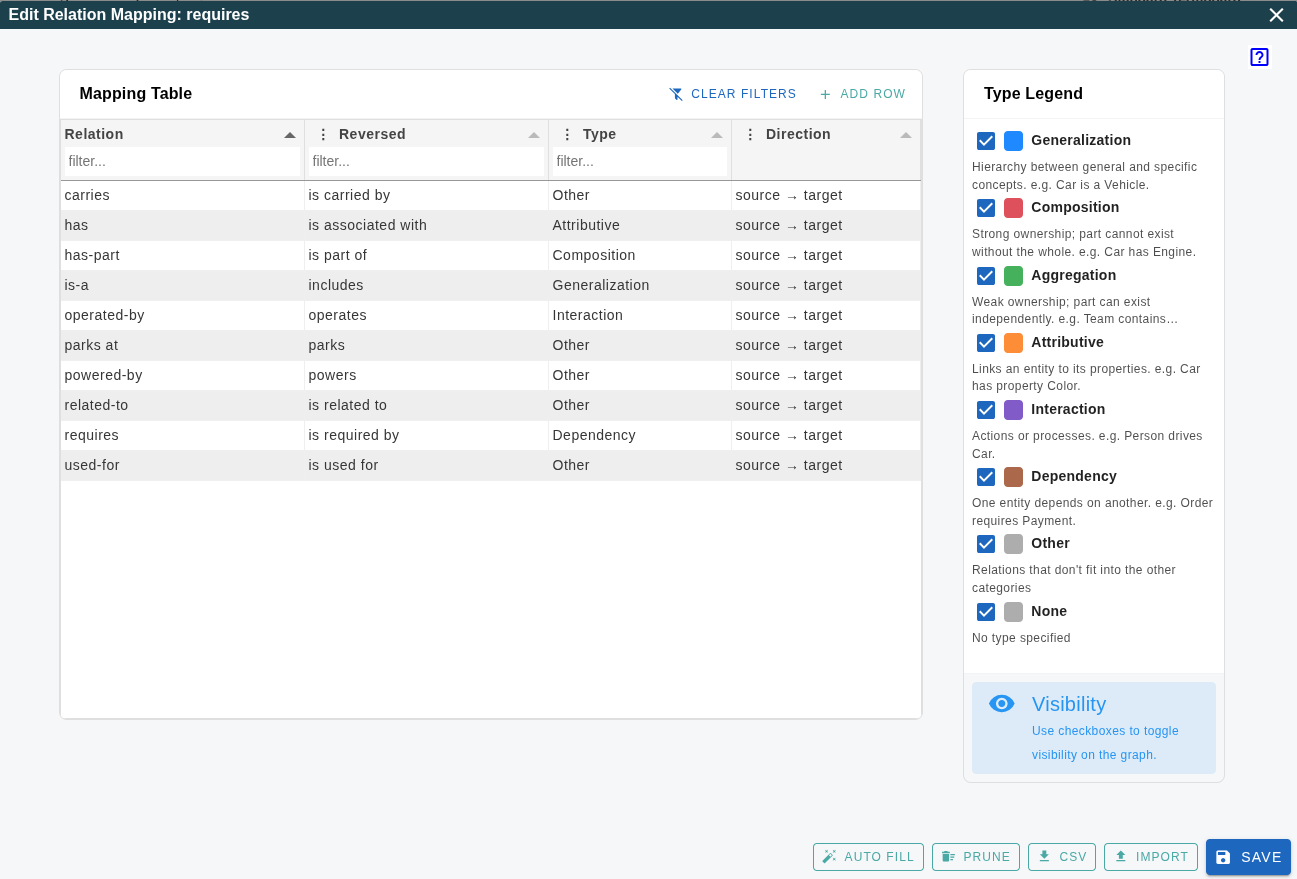
The Relation Type Mapping dialog allows you to manage how relation names in your graph map to semantic types and directions. It also provides a legend to control the visibility of different relation types on the graph.
Mapping Table
The table on the left defines the properties for each unique relation name in your collection:
- Relation: The unique name of the relation.
- Reversed: The name used for the reverse form of the relation (e.g., "is parent of" reversed is "is child of"). Used for verbalizations.
- Type: The semantic category of the relation (e.g., Generalization, Composition). See the Type Legend for details.
- Direction: Specifies the semantic flow of the relation. This is critical for features like inheritance and hierarchy building.
- source → target (Default): The source node is the more specialized concept or part. The target node is the general category or the whole. Example:
Car--is_a-->Vehicle. - target → source (Reversed): The target node is the specialized concept or part. The source node is the general category or the whole. Example:
Vehicle--has_type-->Car.
- source → target (Default): The source node is the more specialized concept or part. The target node is the general category or the whole. Example:
Understanding Semantic Direction
In a graph, edges have a visual direction from source to target. However, the semantic direction identifies which node is the "parent" (generalization) or "whole" (composition).
Termboard uses this setting to determine:
- Inheritance: Properties flow from the "parent" to the "child" based on the semantic direction.
- Hierarchy View: The tree structure is built by following relations from child to parent.
- Semantic Checks: Cycle detection and multi-parent warnings rely on knowing the hierarchy flow.
Auto-Detection
The Auto Fill action tries to guess the correct direction based on common naming patterns:
- target → source is guessed if the name includes words like: subtype, subclass, instance, part, component, member, includes, contains, generalizes, is parent of.
- source → target is the default for most other patterns like: is a, is part of, belongs to, inherits from, specializes.
Table Actions
The toolbar above the table provides quick actions:
- Clear Filters: Resets any active filters in the table headers.
- Add Row: Manually adds a new relation mapping.
Type Legend
The sidebar on the right serves as a legend and visibility controller:
- Visibility Checkboxes: Toggle the checkbox next to a type (e.g., Generalization) to show or hide all relations of that type on the graph.
- Color Indicators: Shows the color assigned to each relation type.
Legend Descriptions
- Generalization: Hierarchy between general and specific concepts (e.g., Car is a Vehicle). Used for Hierarchy View and inheritance.
- Composition: Strong ownership; the part cannot exist without the whole (e.g., Car has Engine).
- Aggregation: Weak ownership; the part can exist independently (e.g., Team contains Players).
- Attributive: Links an entity to its properties (e.g., Car has property Color).
- Interaction: Actions or processes (e.g., Person drives Car).
- Dependency: One entity depends on another (e.g., Order requires Payment).
Bottom Actions
- Auto Fill: Automatically guesses Reversed names and Types based on common patterns.
- Prune: Removes relation mappings that are no longer used in the current graph.
- CSV / Import: Export the mapping to a CSV file or import a previously saved mapping.
- Save: Applies all changes and updates the graph.