Appearance
Business Analysis with Termboard
Preview Documentation
This guide describes features currently in preview. Interface elements and specific functionalities are subject to change as we refine the Business Analysis profile.
Build structured requirements analysis, category mapping, and solution evaluations using the Business Analysis profile. Aligned with industry standards, this guide walks you through Termboard's BA-specific features.
What is Business Analysis in Termboard?
The Business Analysis profile provides a structured metamodel for Requirements engineering. Instead of generic Terms and Relations, you work with purpose-built Term types and standardized Relations designed for Category assessment, vendor evaluation, and project implementation tracking.
Lightweight by Design
This is not a full-blown BA toolsuite — it's a focused, visual approach to building a Requirements backbone and scoring solutions against it, blending graph visualization with tabular evaluation data.
Customizing Your BA Profile
The Business Analysis profile is modular. Instead of being locked into a fixed set of fields, you can dynamically enable or disable specific capabilities for each document.
When the BA profile is active, a Configuration Cog icon appears in the top application bar. Clicking this icon opens the BA Profile Configuration dialog.
Available Modules
You can toggle the following capabilities:
| Module | Purpose | Fields Added |
|---|---|---|
| Evaluation Sets (Scenarios) | Compares different vendors, phases, or quarters. | Scenario dropdown in style bar and Scoring tab. |
| Prioritization (MoSCoW) | Categorizes requirements by business criticality. | Importance (Must, Should, Could, Won't). |
| Manual Score Overrides | Allows bypassing calculated averages with a fixed value. | Manual Override Score on Requirements and Categories. |
| Implementation Tracking | Tracks the real-world progress of a feature. | Implementation Status (Not Started, In Progress, etc.). |
| Compliance Risk Tracking | Monitors regulatory or security risk levels. | Compliance Risk (Low, Medium, High, Critical). |
Toggling these modules adds or removes the associated fields from the sidebar and graph filters. Note: Disabling a module does not delete your data; it simply hides the field from the interface. Re-enabling the module will restore visibility of your previous entries.
The BA Metamodel
Term Types
| Type | Icon | Purpose |
|---|---|---|
| Subject (Term) | Subject | The central topic or system under analysis (e.g., "Data Catalog") |
| Category | Category | High-level business abilities or functional areas |
| Requirement | Requirement | Specific needs or conditions a solution must meet |
| Stakeholder | Stakeholder | People or roles responsible for Categories or Requirements |
| Group | — | A visual container for organizing related analysis elements |
| Term | — | Generic root subject or fallback for other entities |
(Note: "Evaluations" are no longer represented as graph nodes. They are now stored simply as tabular data for a cleaner, focused graph.)
Relations
We use a "Hybrid Minimalist" relation model to keep the graph easy to read:
| Relation | Between | Description |
|---|---|---|
| Supports | Category → Subject | Connects Categories to the central Subject |
| Part Of | Category/Req. → Category/Req. | Builds the backbone hierarchy (decomposition) |
| Responsible For | Stakeholder → Category/Req. | Assigns ownership to a stakeholder |
Hierarchy View
The Hierarchy View (left sidebar) shows the Requirement tree using Part Of as the default Relation:
- Right-click a Category → Add child creates a Requirement
- Use Delete node to fully remove a node from the tree
Building the Backbone
Step 1: Select Your Template
Termboard provides two specialized BA templates depending on your project phase:
- Tool Selection: Designed for comparing multiple vendors against a set of requirements. Pre-configured with Evaluation Sets and Importance.
- Implementation Tracking: Designed for monitoring project progress. Pre-configured with Status and Importance.
- Open Termboard and go to
- Select your desired template.
- This activates the Business Analysis profile and pre-enables the relevant modules for that phase.
Dynamic Flexibility
Templates are just starting points. You can always use the ⚙️ Configuration Cog in the App Bar to add "Risk Tracking" to a Tool Selection model, or "Scenarios" to an Implementation Tracking model at any time.
Step 2: Define Categories and Requirements
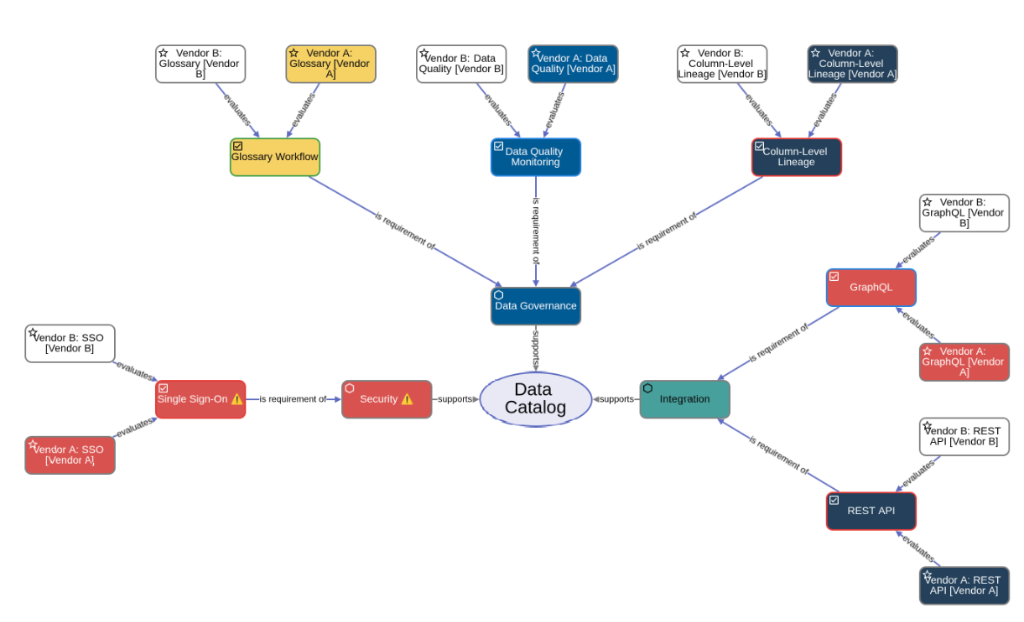
Start by defining the Subject, Categories, and Requirements — the "what" of your Analysis:
- Add a Subject node as the root of your graph (e.g., "Data Catalog" or "Customer Portal").
- Add Category nodes for each major area (e.g., "Data Governance", "Security").
- Link Categories to the Subject using the
Supportsrelation. - Right-click a Category → Business Analysis > Add Requirement to create child requirements.
- Requirements and sub-categories are automatically linked via the
Part Ofrelation.
Requirement Breakdown
You can break down complex requirements into smaller sub-requirements or nest Categories infinitely using the Part Of relation.
- Recursive Rollups: When a Category or Requirement has children, its total score (in evaluation workflows) is automatically calculated as the weighted average of its children.
- Leaf Requirements: Only "leaf" requirements (those at the very bottom of the tree) should be directly scored.
Assigning Ownership
Connect Stakeholders to Categories or Requirements using the Responsible For relation. This clarifies who owns what part of the analysis and ensures accountability.
Global Filtering by Priority (MoSCoW)
When the Business Analysis profile is active, you can selectively filter your entire analysis by MoSCoW priority using the Filter icon () in the top application bar.
- Selective Aggregation: Use this to answer questions like "What are just our MUST-HAVE requirements?".
- Global Context: The filter applies to the graph heatmap, category rollup tables in the sidebar, and the Radar Chart view.
- Visual Indicator: The filter icon in the top menu displays a badge showing the number of active priorities selected.
To include all requirements again, simply use the "Clear Filters" button within the filter menu.
Validation Checks
The BA profile includes domain-specific checks under Tools > Semantic Checks:
| Check | What It Finds |
|---|---|
| Orphan Requirements | Requirements not linked to any Category via Part Of |
| Isolated Stakeholders | Stakeholders not Responsible For any Categories or Requirements |
| Incomplete Scoring | Requirements not fully scored across all scenarios/stakeholders |
| Requirement Missing Description | Requirements without a written description |
| Requirement Missing Importance | Requirements without a MoSCoW priority assigned |
| Requirement Missing Stakeholder | Requirements without an assigned owner |
| Requirement Missing Evaluation | Requirements without any evaluation scores |
| Requirement Missing Category | Requirements not mapped to a functional Category |
| Requirement Overlap | Requirements with highly similar names that might be duplicates |
These checks only appear when the BA profile is active. Use Run All Checks to scan your entire model for missing linkages.
Next Steps
Once your requirements backbone is built and validated, you can move on to specific workflows:
- Tool Selection & Vendor Evaluation: Learn how to score vendors against your requirements, visualize results with heatmaps, and generate RFP/RFI documents.
- Implementation Tracking: A guide for Product Owners on using the evaluation engine to track sprint progress and project health.