Appearance
Chat with Model
The Chat with Model sidebar provides an interactive AI-powered assistant that understands your semantic model. Ask questions about your terms, relations, and structure—and get contextual answers.
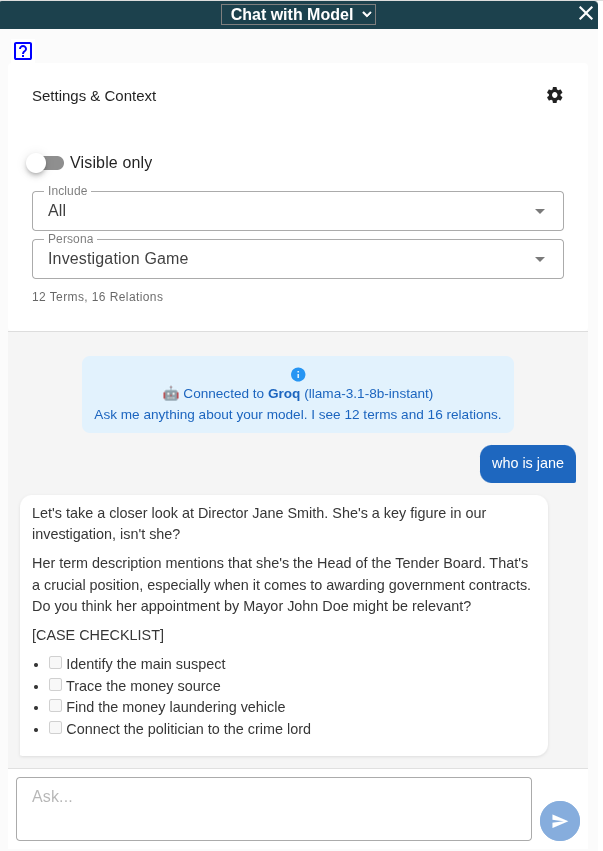
Getting Started
- Open the sidebar via or click the chat icon in the right sidebar
- The assistant automatically sees your model's terms and relations
- Type a question and press Enter or click the send button
No API Key Required for Demos
When using the "Corruption Investigation Demo", a simulated mode provides responses without needing an API key.
Settings & Context
Click the Settings & Context header to expand options:
| Setting | Description |
|---|---|
| Visible only | When enabled, only terms/relations currently visible on the graph are included in context |
| Include | Choose what to share with the AI: Terms, Relations, or Both |
| Include Extra Fields | When enabled, any custom Extra Fields are included in the context. |
| Persona | Select the assistant's behavior mode |
The stats line shows how many Terms and Relations are in the current context.
Personas
Standard Assistant
The default mode. Ask any question about your model:
- "What terms have the most relations?"
- "Explain the relationship between Customer and Order"
- "Are there any isolated concepts?"
- "Summarize this model in 3 sentences"
Investigation Game
A guided detective experience where you investigate a corruption case. The AI acts as your Chief of Detectives, guiding you through the evidence without giving direct answers.
How to play:
- Load the demo:
- Set persona to Investigation Game
- Type "What's my assignment?" to begin
- Follow the clues and trace connections in the graph
Deep Link
Share the investigation directly: https://termboard.com/app/?sidebar=chat_with_model&persona=investigation&term_tab=Relations&demo=Corruption_Investigation_Demo
Focus Feature
When the AI mentions a specific term or relation, it can automatically focus the graph on that element. The AI uses [FOCUS: Element Name] tags internally to highlight relevant parts of your model.
AI Configuration
The chat uses your configured AI provider from . Supported providers:
- OpenAI (GPT-4, GPT-3.5)
- Anthropic (Claude)
- Gemini
- Groq
See Cloud AI Settings for configuration details.
Tips
- Be specific — "What is the Customer entity?" works better than "Tell me about customers"
- Reference your model — The AI knows your exact terms and relations
- Use visible-only mode — For large models, focus on a subset first
- Check the context — The stats show what the AI can see
Related
- Cloud AI Settings — Configure AI providers
- Copy Model Context — Export model context for external AI tools
- Bulk Add/Chatbot — Generate terms and relations with AI