Appearance
Tool Selection & Vendor Evaluation
Preview Documentation
This guide describes features currently in preview. Interface elements and specific functionalities are subject to change as we refine the Business Analysis profile.
One of the primary use cases for the Business Analysis profile is evaluating and selecting software tools or vendors. Termboard provides a dedicated workflow for scoring solutions against your requirements backbone, visualizing the results with heatmaps, and generating RFP/RFI documents.
Before starting this guide, ensure you understand the core concepts in the Business Analysis guide and have built your requirements backbone (or use AI to generate it, see next section).
Generating a Draft Backbone with AI
If you are just starting a tool selection project, you can use an AI (like Gemini or ChatGPT) to automatically generate a first draft of your requirements.
To get the best results, provide the AI with a structural example first:
- Open the Data Governance Demo in a new tab.
- Navigate to .
- Toggle on Include Extra Fields and press Download.
- Open your preferred AI chatbot and upload the downloaded file as an example.
- Provide a prompt similar to this:
"I want to select a tool for data governance. Please generate about 10 categories and 50 requirements. Then, select applicable open-source tools and score them against the requirements, including a short explanation for each score. Output the result using the exact structure and formatting of the provided example file."
- Back in your Termboard workspace, prepare an empty canvas by selecting and deleting any placeholder elements.
- Import the AI-generated text using the Compact Format importer ().
Dynamic Capabilities
If your selection process requires specific checks like Compliance Risk or Implementation Status, you can enable these at any time using the ⚙️ Configuration Cog in the top application bar.
Layering in Evaluations (Scoring)
Once your requirements backbone is stable, you can begin scoring solutions directly in the sidebar:
- Select a leaf Requirement node in the graph.
- Open the Scoring tab on the right sidebar.
- Select an Evaluation Scenario (e.g., "Vendor A" or "Tool B"). You can manage these in the Evaluation Set dropdown in the top bar.
- Enter your Scorer ID (e.g., your email) to track who provided the score.
- Click a score chip (0-5 or Skip) and provide an optional explanation.
- Auto-save: Your evaluation is instantly saved. You can use the "Next Unscored" button to rapidly move through remaining requirements.
Data Review & Stakeholder Consensus
If multiple scorers evaluate the same Requirement, Termboard automatically calculates the Average Score, tracks the Scorer Count, and calculates the Variance. Within the Scoring tab of a Requirement, you can expand the Scorer Breakdown to see how different stakeholders scored the item, or expand the Cross-Scenario Comparison to see how the requirement fares across all vendors.
Manual Overrides
If you need to bypass the average or rollup computations for a Requirement or a Category, you can set the Override Score via its properties or Extra Fields. When an override is active, it takes precedence over any stakeholder evaluations or averaged scores.
Bulk Editing via the Evaluations Table
If you prefer a spreadsheet-like view to edit scores across your entire model, you can use the Evaluations Table:
- Check the top menu and navigate to .
- This table displays all evaluations across all scenarios, scorers, and requirements.
- You can rapidly associate requirements via searchable dropdowns, adjust scenarios, update scores (0-5, or Skip), and write detailed explanations using the embedded rich-text editor.
- When adding a new row, it will automatically populate with your active Scenario and Scorer ID to speed up data entry.
Category Rollups
To view aggregated scores for a whole section of your project:
- Select a Category node.
- Open the Scoring tab.
- Termboard displays a Rollup Score and a table of all children, showing their individual scores and whether any failed a "Must Have" condition.
- Clicking a child row will instantly navigate to that node in the graph.
Visualize with Heatmaps
Termboard can colorize your requirement tree to instantly show how a vendor performs.
- In the style bar at the top, find the Scenario dropdown (under Analysis). (Note: You can add or rename scenarios using the "Manage Scenarios" option in this dropdown).
- Select your base scenario, and choose your Heatmap Mode:
Sensitivity Analysis
By default, requirements roll up to their categories using a weighted average based on MoSCoW priority (Must=9, Should=3, Could=1, Won't=0).
You can modify these multipliers live to test how vendor rankings change if priorities shift:
- Click the ⚙️ Analysis Settings Cog in the top style bar (next to the scenario dropdown).
- Adjust the MoSCoW Weight sliders.
- The graph, tables, and exports update reactively.
Mode: Score
The graph transforms into a color-coded heatmap based on roll-up scores:
- 5 — Excels: Dark Blue
- 4 — Very Good: Medium Blue
- 3 — Good/Adequate: Teal/Cyan
- 2 — Marginal: Yellow
- 1 — Poor: Orange
- 0 — Unacceptable: Red
- Skipped / Incomplete Data: White
Mode: Compare
Compare two scenarios head-to-head. Select your "Base Scenario", then choose a "Compare To" scenario. The graph will colorize based on the difference (Delta) in their scores:
- Green: The "Compare To" scenario is an improvement over the "Base".
- Red: The "Compare To" scenario is a regression.
- Grey: Neutral (no change).
- White: Incomplete comparison (e.g. one scenario was explicitly Skipped or has no score).
Generating RFP/RFI Documents
For formal reporting or vendor communication, Termboard can generate a professional, hierarchically structured requirements matrix in HTML format (optimized for printing to PDF).
- Navigate to .
- Choose between two specialized modes:
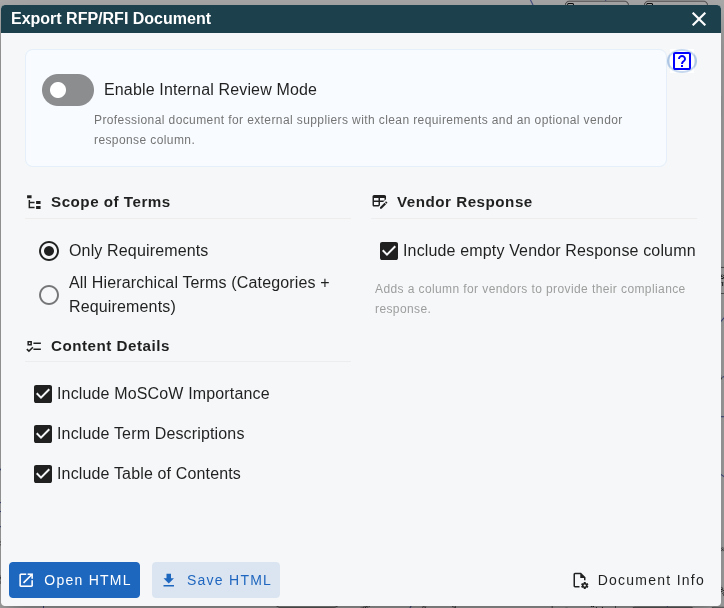
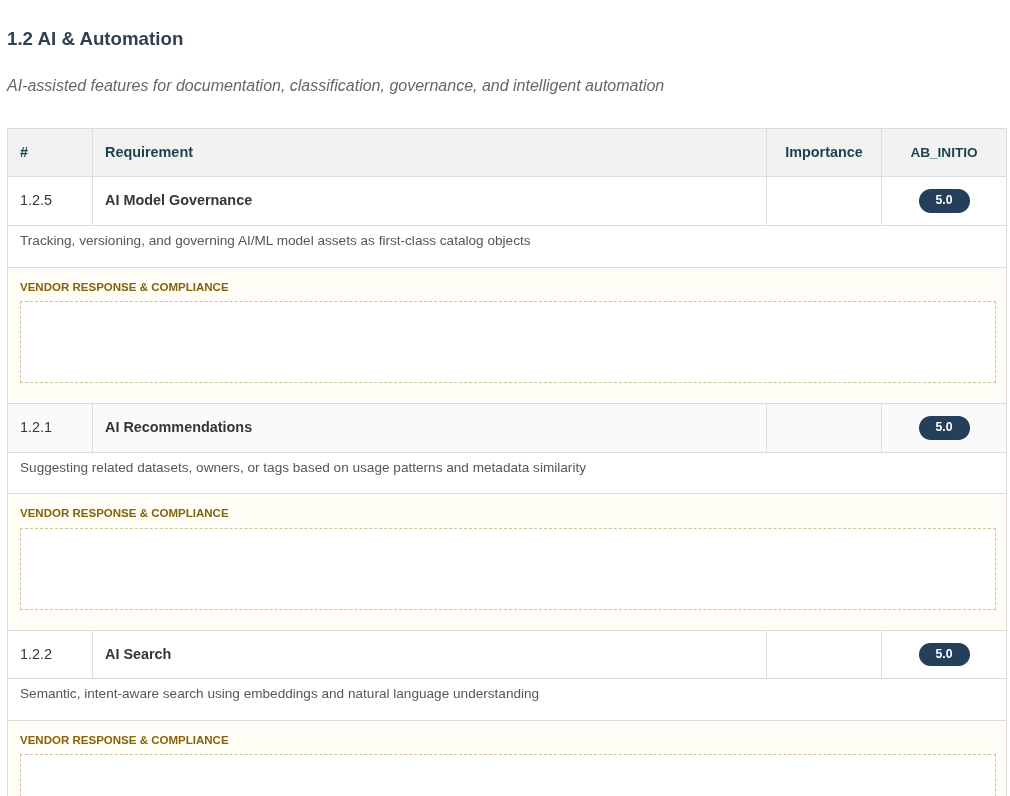
Mode 1: External Supplier Mode
Designed for formal requests to vendors. It provides a clean, professional requirements table and can include an empty Vendor Response column for suppliers to fill in.
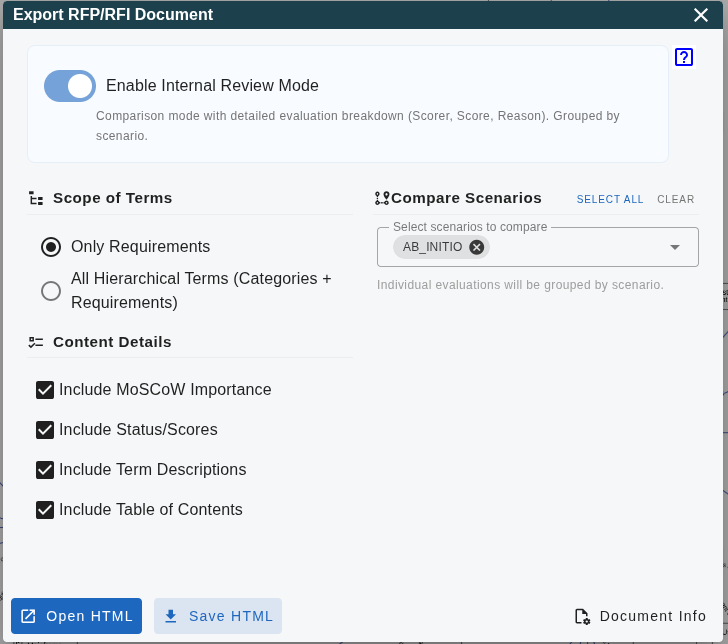
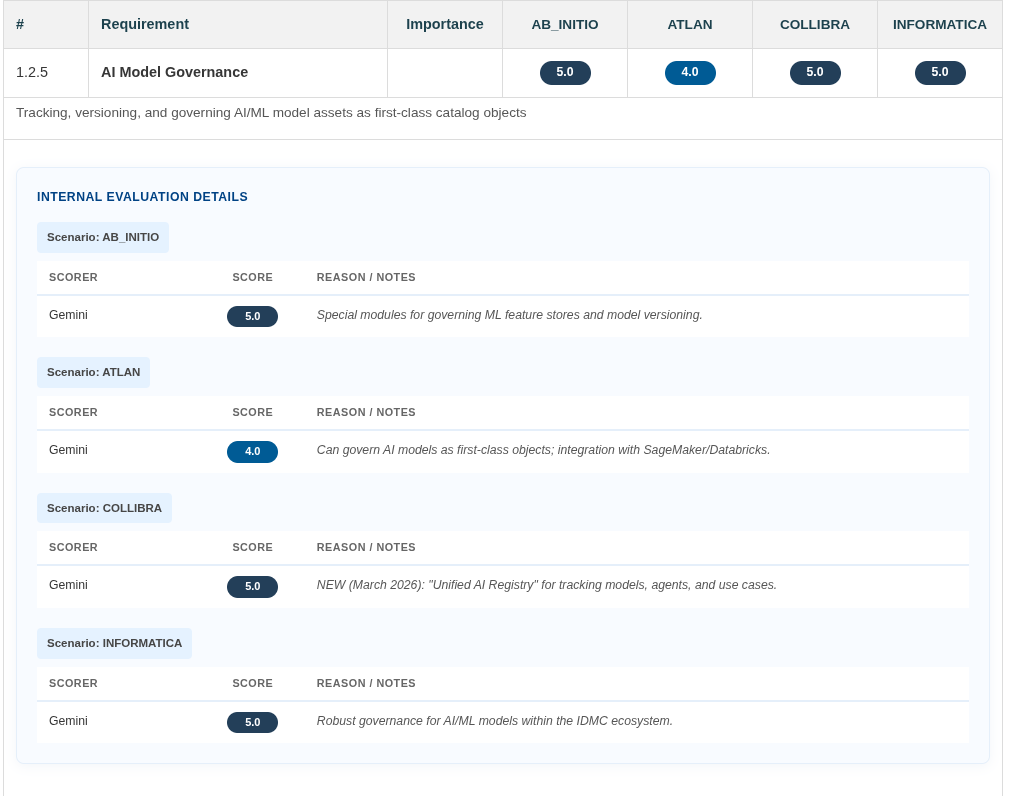
Mode 2: Internal Review Mode
Designed for internal stakeholder analysis and comparison. It allows you to select multiple scenarios to compare head-to-head in a single document. Each requirement includes a detailed breakdown of Scorer IDs, Scores, and Reasoning.
Configuration Options
- Scope of Terms: Choose to export "Only Requirements" for a focused list, or "All Hierarchical Terms" to include Categories and Subjects for context.
- Content Details: Toggle the inclusion of Table of Contents, MoSCoW Importance, Status/Scores, and detailed Term Descriptions.
Export & Import for Stakeholders
With an active scenario selected:
- Click the Export CSV button next to the scenario dropdown.
- Download a flat CSV with
Category, Requirement, Importance, Score. - Share with stakeholders or import into Excel for further analysis.
Compact Format Import & Export
You can use the Import BA Evaluations and Export to Compact Format options under the menu. The Compact Format fully supports exporting and importing all Business Analysis scores, stakeholder evaluations, and scenarios.
Selective Export
In the Compact Format export dialog, you can choose to export only Evaluations. This is ideal for sharing scoring results or vendor comparisons with stakeholders without including the full structural complexity of the graph.
Validation Checks
The BA profile includes specific checks for incomplete evaluations under Tools > Semantic Checks:
- Incomplete Scoring: Finds Requirements that are missing scores across scenarios or scorers.
Use Run All Checks to ensure your vendor evaluation is complete before finalizing your decision.